

Overview
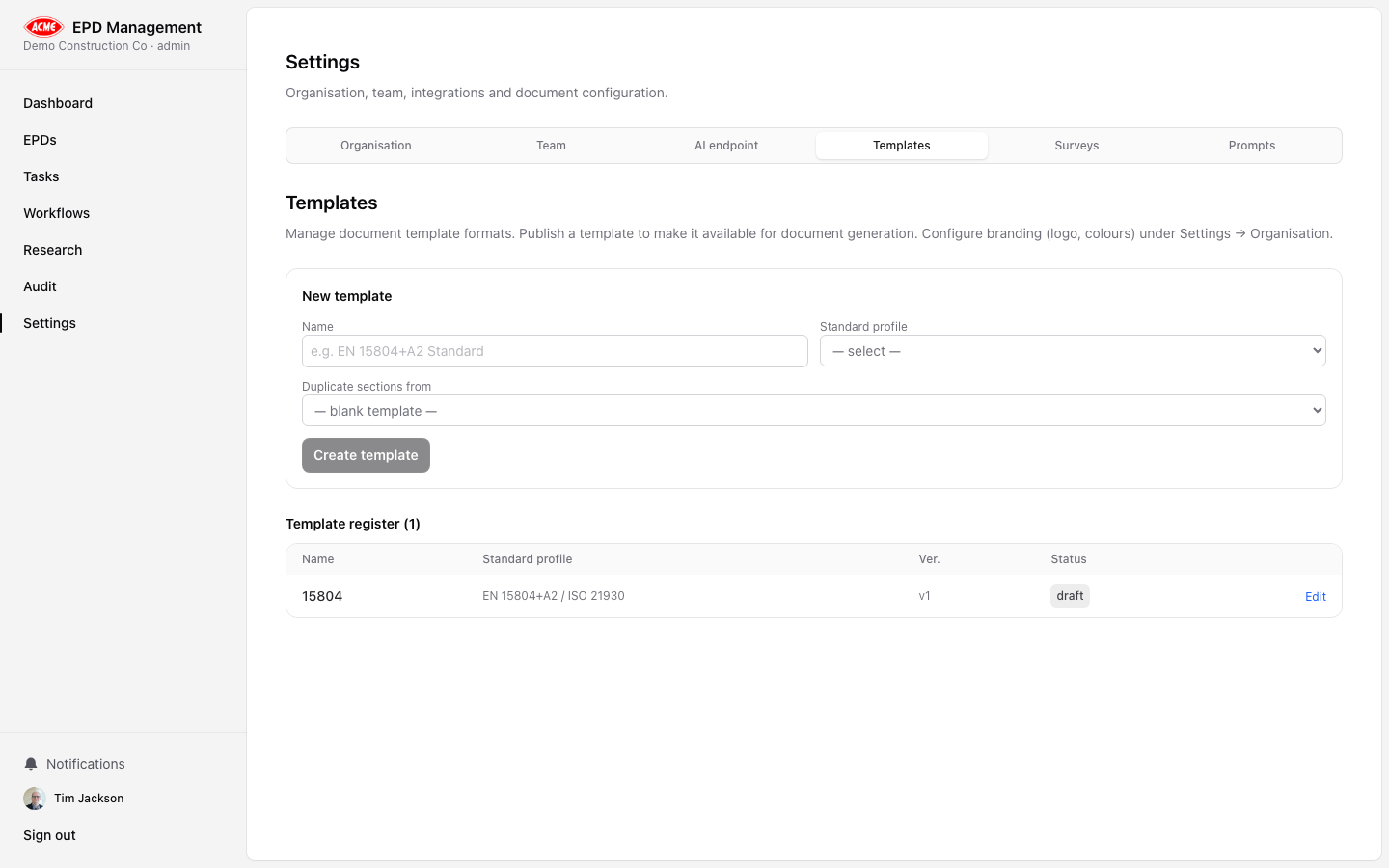
Templates define the structure and content of generated EPD documents. You can create multiple templates for different standard profiles or product categories, and publish the one you want used for PDF generation. Templates are accessed under Settings → Templates tab.Template statuses
| Status | Meaning |
|---|---|
Draft | Being edited — not yet available for generation |
Published | Active — used when generating EPD documents |
Archived | No longer in use |
Creating a template
Fill in the New template form
Enter:
- Name — a descriptive name (e.g. “EN 15804+A2 Standard”)
- Standard profile — the applicable standard this template covers
Editing template sections
Click on a template to open its section editor. You can configure standard document sections:| Section | Description |
|---|---|
| Product description | Introductory product overview text |
| LCA methodology notes | Notes on methodological choices |
| Additional technical information | Supplementary data and references |
| Disclaimers | Standard liability and usage disclaimers |
- Toggle it on or off (enabled/disabled)
- Edit the content — supports markdown formatting