Roles
EPD Management uses role-based access control. Each member has one of the following roles:
| Role | Capabilities |
|---|
| Owner | Full access — all admin settings, can remove admins |
| Admin | All settings except removing Owner; can invite/remove members |
| Practitioner | Create and edit EPDs, run AI analysis, manage tasks |
| Reviewer | Read-only access to EPDs; can add review comments |
An organisation must always have at least one Owner. The Owner role cannot be removed if it is the last owner.
Inviting a member
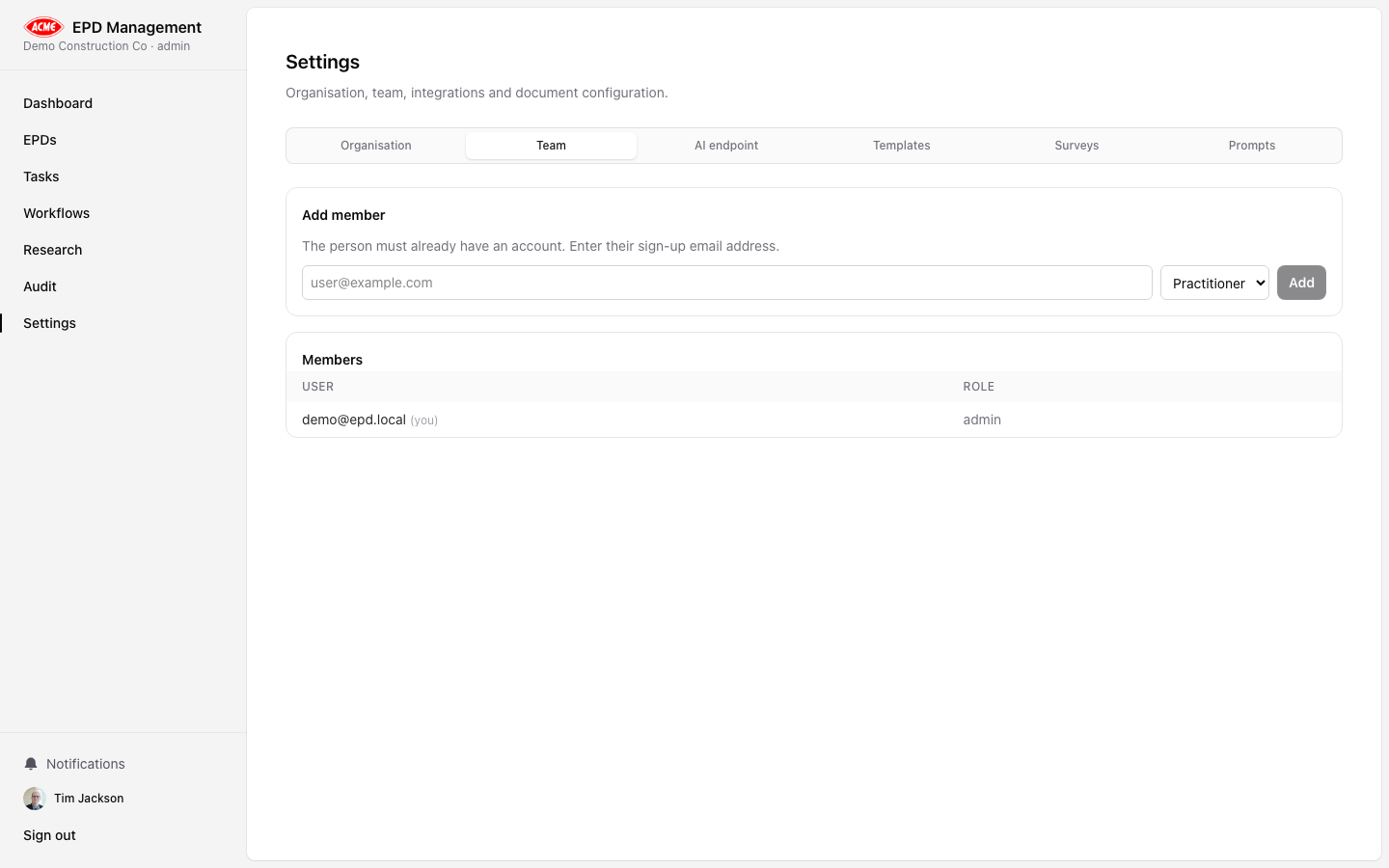
Go to Settings → Team
Navigate to /settings and click the Team tab.
Enter email address
Type the person’s email in the Email field under Invite a member.
Choose a role
Select the appropriate role from the Role dropdown.
Send invitation
Click Invite. The user must already have an account — they will be added to your organisation immediately.
The invited user must have already registered an account before they can be added. Ask them to sign up at the app URL first if they don’t have an account.
Changing a member’s role
In the team member list, use the Role dropdown next to any member to change their role. Changes take effect immediately.
Removing a member
Click the Remove button next to a member to remove them from the organisation. This does not delete their account — it only removes their access to your organisation’s data.
Removing a member is immediate and cannot be undone without re-inviting them.