Overview
The Tasks page (/tasks) gives your team a shared task board for tracking EPD-related work. Tasks can be standalone or linked to a specific EPD.
Views
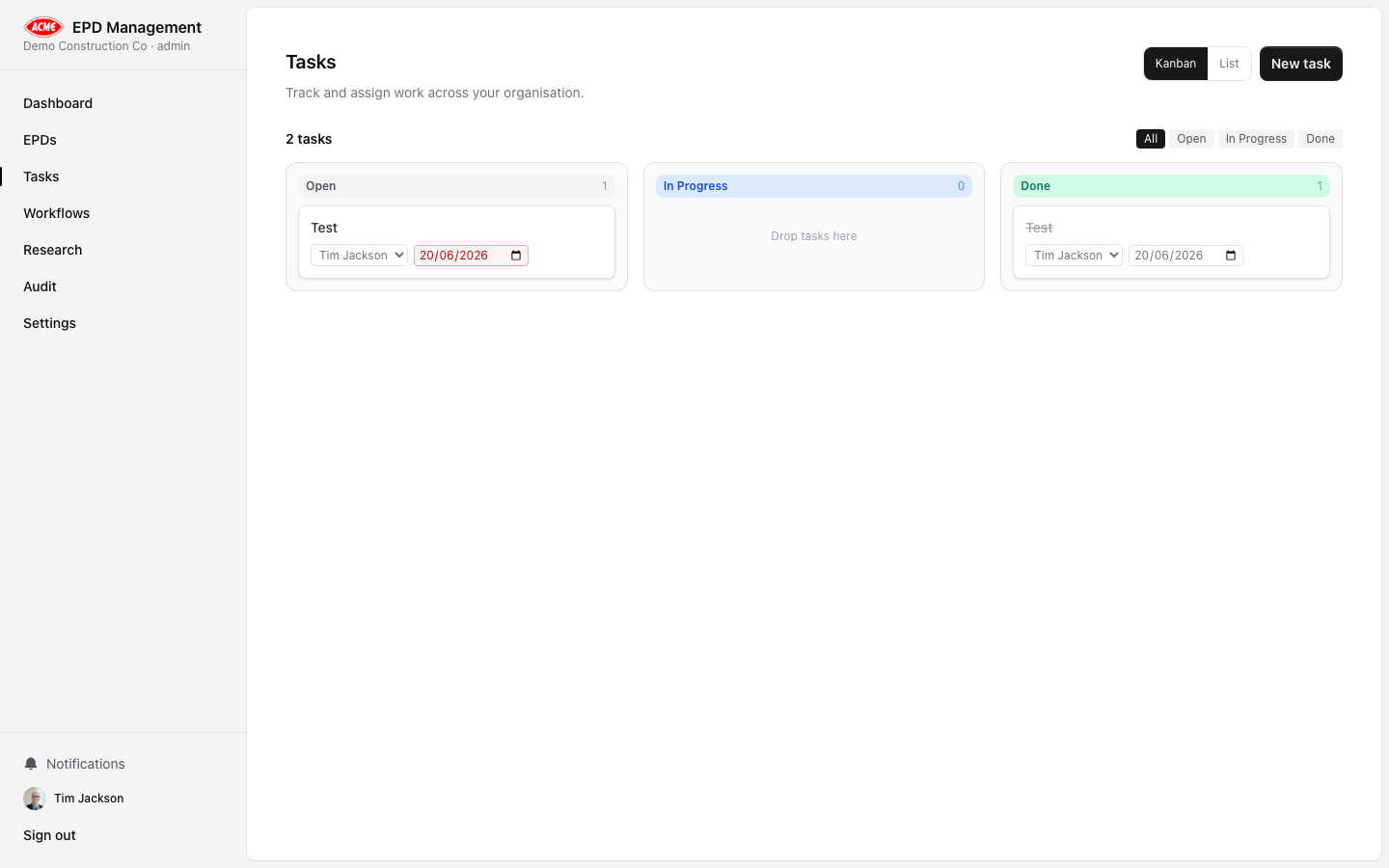
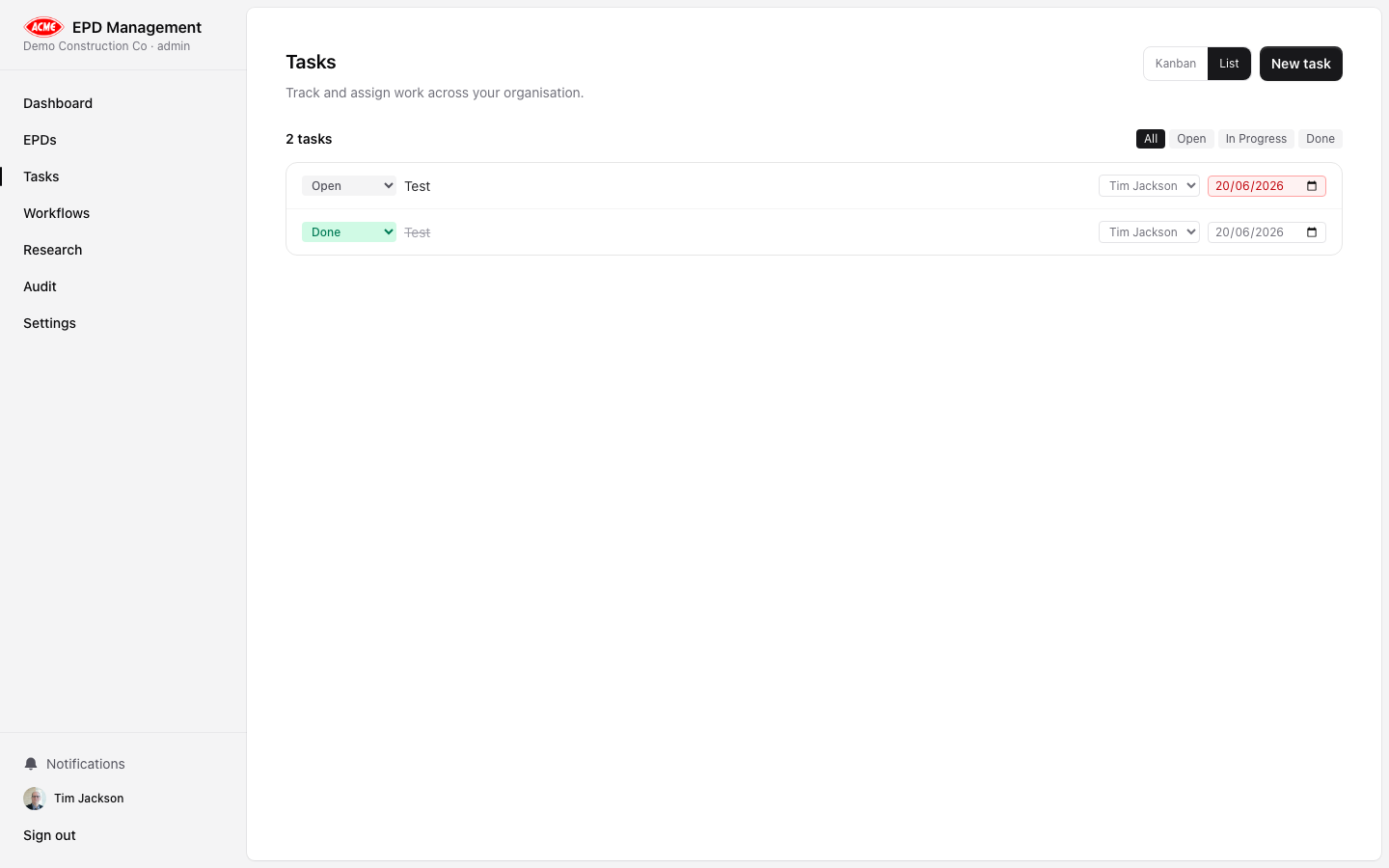
Toggle between Kanban and List views using the buttons at the top right.
Kanban view
Tasks are displayed in three columns based on their status:
| Column | Status |
|---|
| Open | Not yet started |
| In Progress | Actively being worked on |
| Done | Completed |
List view
The list view shows all tasks in a compact table. Use the status filter buttons (All / Open / In Progress / Done) to narrow the list.
Creating a task
Click New task
Click the New task button at the top right of the Tasks page.
Enter a title
Type a descriptive task title.
Set assignee
Select a team member from the Assignee dropdown. Their display name is shown.
Set priority
Choose High, Medium, or Low priority.
Set due date (optional)
Pick a due date using the date picker.
Add task
Click Add task. The new task appears in the Open column.
Task cards
Each Kanban card shows:
- Priority badge — colour-coded (red = High, amber = Medium, grey = Low)
- Title — struck through when Done
- Assignee selector — change assignment inline
- Due date picker — dates in the past show in red if the task is not done
- EPD → link — if the task is linked to a specific EPD
Editing tasks
All task fields (status, assignee, due date) can be edited inline directly on the card or list row — no separate edit screen required.
Due dates highlighted in red indicate the task is overdue. Update the date or mark the task Done to clear the highlight.
Tasks from EPDs
Tasks created from within an EPD detail page are automatically linked to that EPD. They appear on the main Tasks board and include an EPD → link to jump back to the source EPD.