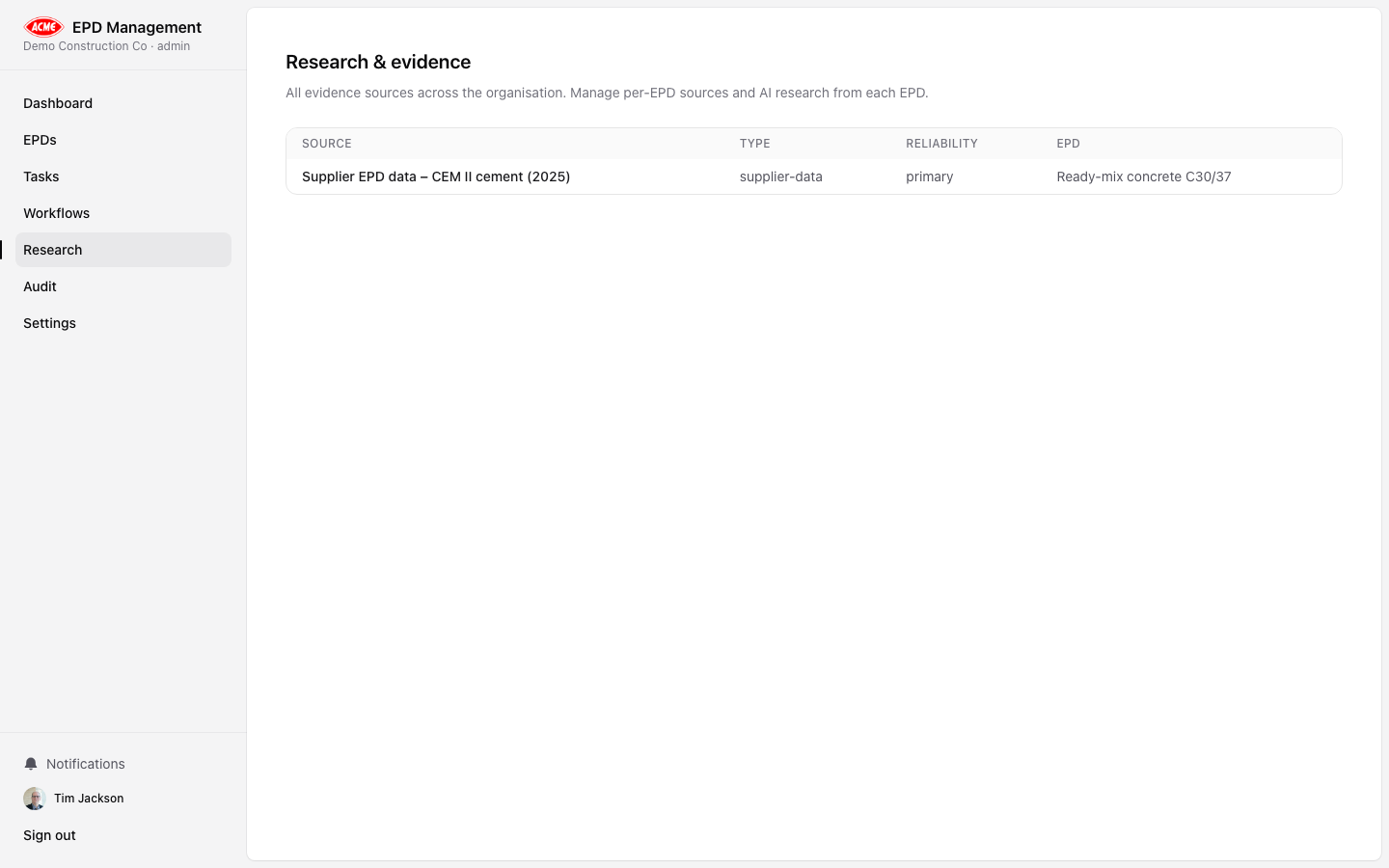

This walkthrough uses a sample concrete block EPD. Estimated time: 30–45 minutes for your first EPD.

Step 1 — Create the EPD record
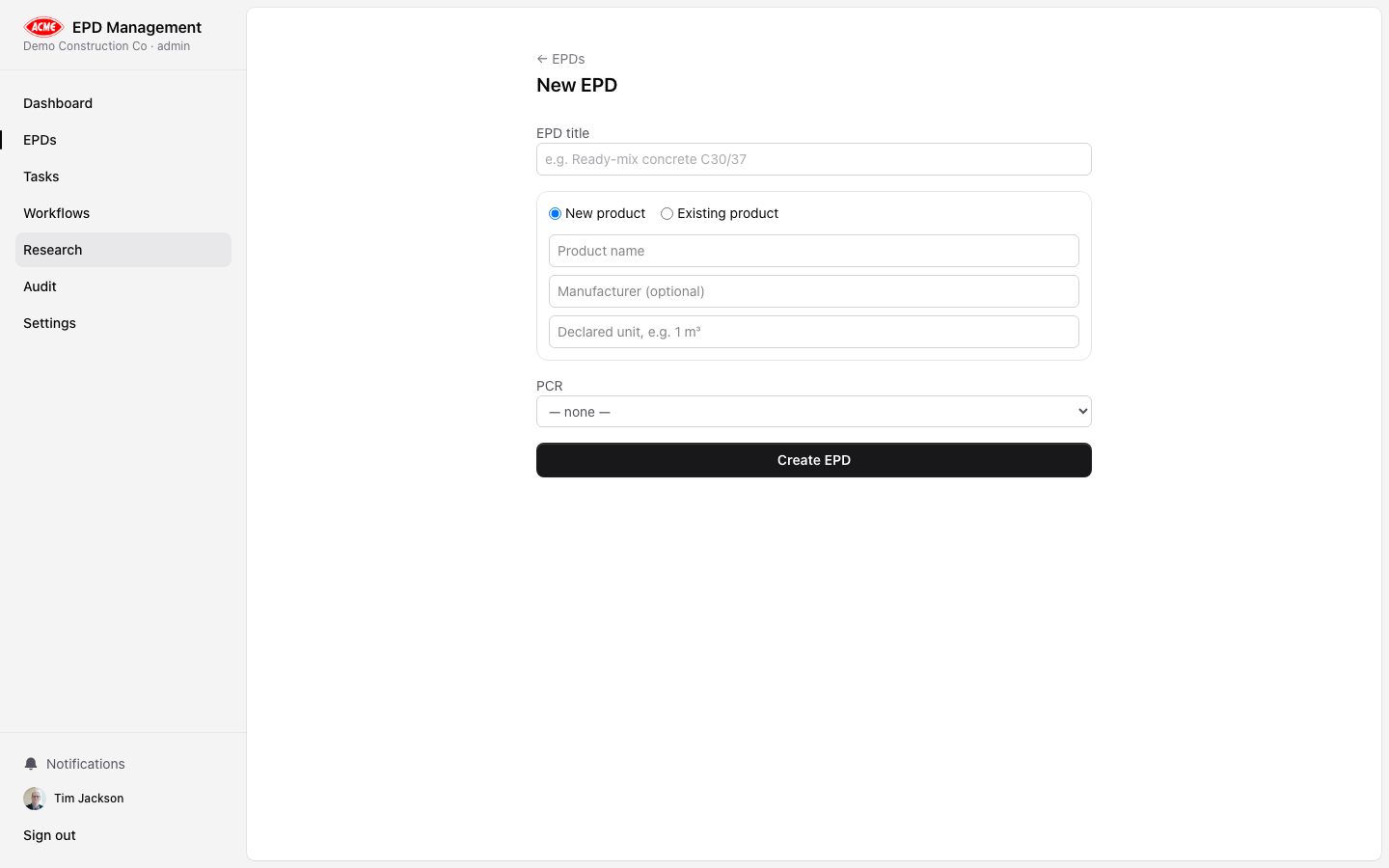
Creating a new EPD
1

Navigate to EPDs

Click EPDs in the left sidebar, then click New EPD.
2

Fill in basic details

Enter the following:
FieldExample value
EPD titleConcrete Block — EN 15804+A2 EPD
Product nameStandard Density Concrete Block
Standard profileEN 15804+A2 / ISO 14025
PCREN 16757 — Concrete and concrete elements
3

Create the EPD

Click Create EPD. You will be taken to the EPD detail page.

Step 2 — Complete the Overview

EPD overview tab
On the Overview tab, fill in the product details:
1

Declared unit

Enter the declared unit — e.g. 1 tonne of concrete block.
2

System boundary

Describe the system boundary — e.g. Cradle to gate (modules A1–A3). Excludes operational and end-of-life stages.
3

Manufacturer details

Enter the manufacturer name, country of manufacturing, and any relevant plant location.
4

LCA practitioner

Enter the name of the LCA practitioner or organisation who performed the study.
5

Save

The Overview auto-saves on field blur. Look for the green confirmation message.

Step 3 — Enter LCA module data

LCA data entry
Click the LCA Data tab. Enter your LCA results for each life-cycle module. For our cradle-to-gate example, complete modules A1, A2, A3 for the key indicators:
IndicatorModule A1Module A2Module A3
GWP-total (kg CO₂ eq.)45.23.112.4
ODP (kg CFC-11 eq.)2.1e-71.4e-84.2e-8
AP (mol H⁺ eq.)0.180.090.05
PENRT (MJ)1804265
Leave modules outside your declared system boundary (B1–B7, C1–C4, D) as MND (Module Not Declared) rather than zero. Zero implies a measured result of zero, which is different from “not applicable”.

Step 4 — Run AI gap analysis

Running gap analysis
Before progressing the EPD, use the AI to check for missing or weak elements.
1

Click the Research tab

Click Research in the EPD detail tab bar.
2

Select Gap Analysis

From the analysis type dropdown, select Gap Analysis.
3

Run

Click Run analysis. Wait for the status to change from pendingrunningcomplete (typically 15–30 seconds).
4

Review results

Click the completed run to expand the findings. Look for CRITICAL and MAJOR items — these must be addressed before proceeding.

Understanding gap analysis output

The AI will identify issues such as:
CRITICAL
• Missing end-of-life data (modules C1–C4) — no MND declaration or justification
• Background database not documented

MAJOR  
• Reference service life not stated
• No cut-off criteria description

MINOR
• Verifier accreditation reference absent
Address each critical and major finding by updating the relevant data fields or adding documentation.

Step 5 — Run conformance check

Conformance check
1

Run Conformance analysis

From the Research tab, select Conformance and click Run analysis.
2

Review clause-by-clause findings

The conformance check maps your EPD against specific clauses of EN 15804+A2. Each finding includes the relevant clause reference.
3

Update EPD data

Return to the Overview or LCA Data tabs to address any conformance issues raised.

Step 6 — Create tasks for your team

Creating tasks
If the gap analysis or conformance check identified issues that need to be resolved by other team members, create tasks:
1

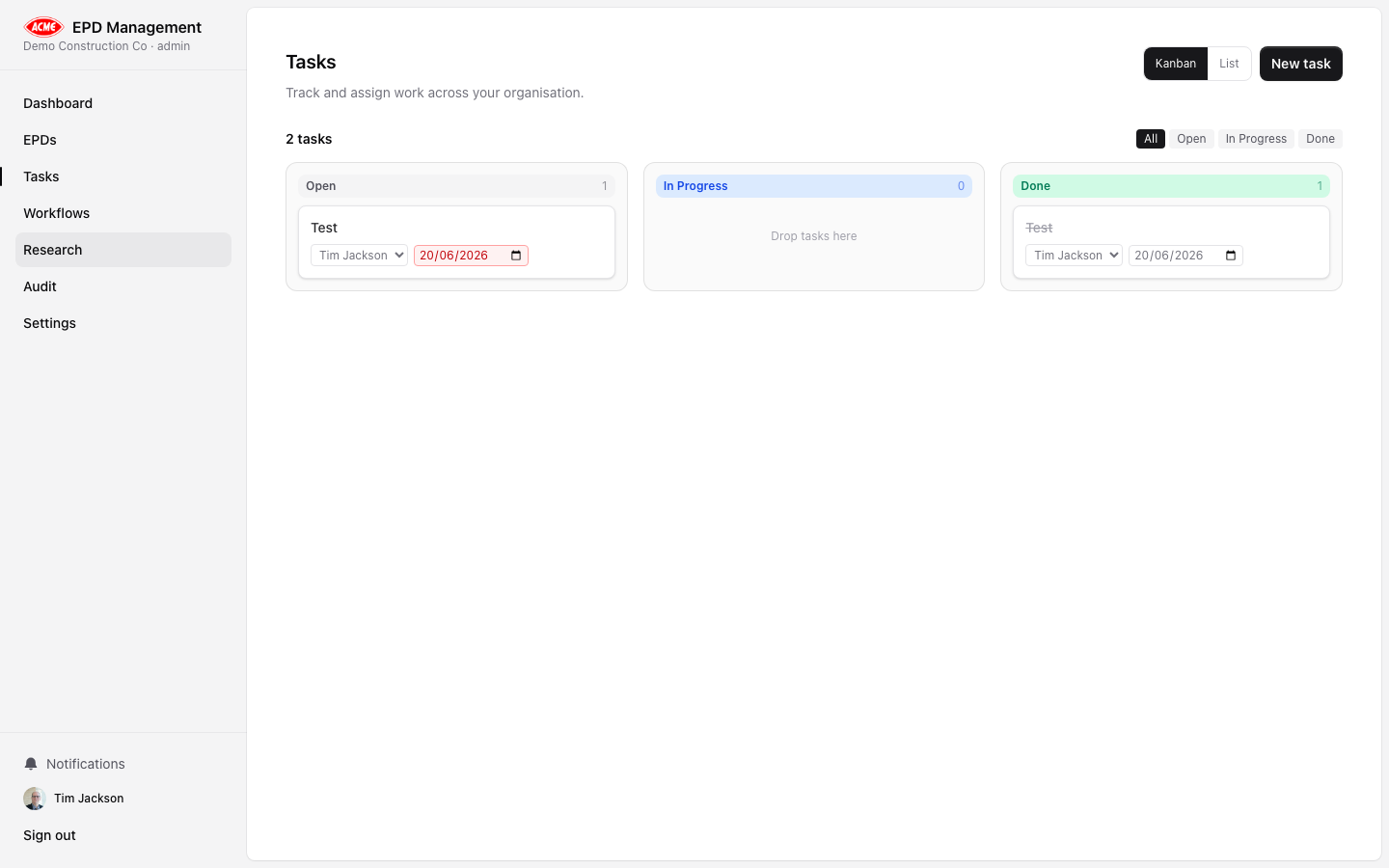
Go to the Tasks page

Click Tasks in the sidebar.
2

Create a task

Click New task, enter a title describing the action needed (e.g. “Add background database documentation to Concrete Block EPD”), set the assignee, priority, and due date.
3

Link to EPD (optional)

Tasks created from within an EPD’s page are automatically linked. Alternatively, create them from the main Tasks board.

Step 7 — Progress the workflow

Workflow progression
Once gap and conformance issues have been addressed:
1

Return to the EPD Overview

Navigate back to the EPD’s Overview tab.
2

Submit for internal review

Click Submit for Review. The status changes to Internal Review.
3

Record an internal approval

An admin or reviewer can open the Governance tab and record an approval decision with a comment.
4

Send to verifier

Once internal review is approved, click Send to Verifier. Record the verifier details in the Governance tab.
5

Record verification outcome

After verification, record the outcome (approved/rejected), verifier name, accreditation reference, and validity date.
6

Publish

With a successful verification, click Publish. The EPD status changes to Published.

Step 8 — Generate the EPD document

Document generation
1

Go to the Documents tab

Click Documents in the EPD tab bar.
2

Check branding is configured

If your logo and brand colours are not yet set, go to Settings → Organisation first. See Branding.
3

Select a template

Choose the published document template to apply.
4

Generate PDF

Click Generate PDF. The document will be rendered using your EPD data, LCA results, and brand kit.
5

Download

Download the PDF for distribution, submission to a programme operator, or archival.

Step 9 — Review the audit trail

Audit trail
After completing the EPD, review the audit trail to confirm the complete record of all actions:
  1. Go to the EPD’s Governance tab to see the EPD-specific log
  2. Go to Audit in the sidebar to see the full organisation log
The audit trail confirms: who created the EPD, who ran each analysis, who approved, who verified, and who published — with timestamps and roles. This record satisfies third-party auditor and programme operator requirements.

🎉 Congratulations

You have completed the end-to-end EPD Management walkthrough. Your EPD has been:
  • ✅ Created and fully documented
  • ✅ Analysed for gaps and conformance using AI
  • ✅ Progressed through the workflow to Published
  • ✅ Generated as a branded PDF document
  • ✅ Recorded in a complete, immutable audit trail
For next steps, explore the Admin Guide to configure your organisation’s settings, or return to the User Guide for detailed reference documentation.